
Download Tube Controller – Keyboard YouTube Control, Free & Secure Tool
Overview
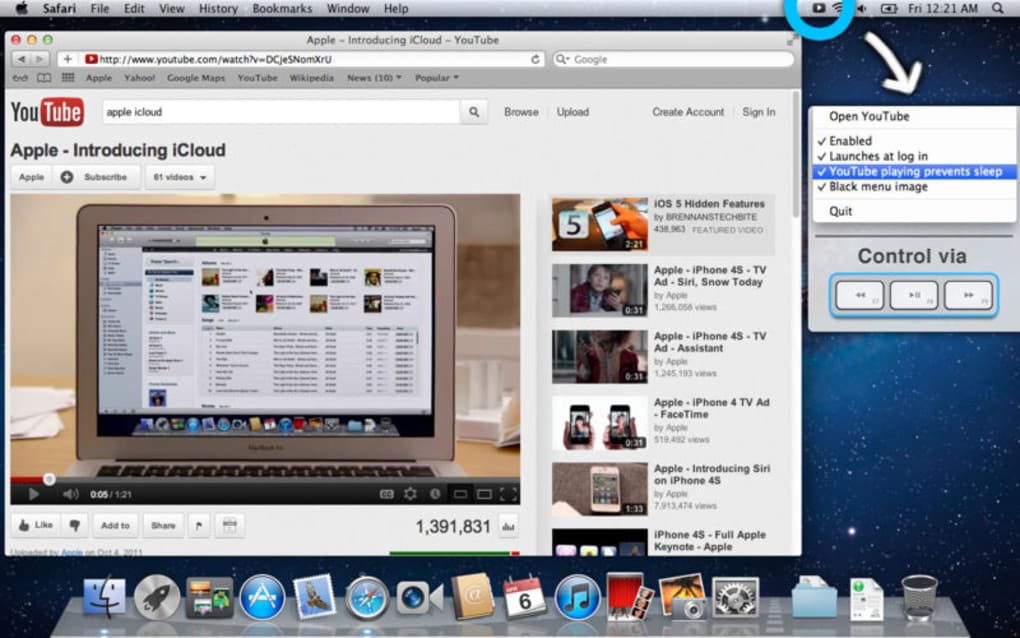
Tube Controller is a lightweight macOS utility that puts YouTube playback at your fingertips—literally. By listening to the standard media keys on any Apple keyboard, the app lets you play, pause, rewind, and fast‑forward YouTube videos without moving the mouse. The program runs silently in the background and appears as a tiny icon in the menu bar, ready for instant activation.
Because it only intercepts media‑key events, it coexists peacefully with QuickTime Player, iTunes, Spotify, and other media‑centric apps. If you spend hours binge‑watching tutorials, music videos, or livestreams, Tube Controller offers a mouse‑free workflow that can improve focus, reduce wrist strain, and speed up navigation. The tool is free to download, regularly updated for security, and requires no additional plugins or browser extensions.
Whether you are a student needing quick control during research, a creator reviewing footage, or simply a YouTube enthusiast, Tube Controller delivers a seamless, secure way to command video playback from the comfort of your keyboard.
Key Features
- Media‑key integration: Uses standard play/pause, forward, and backward keys on any Mac keyboard.
- Background operation: Runs silently in the menu bar, consuming minimal system resources.
- Non‑intrusive design: Does not interfere with QuickTime Player, iTunes, Spotify, or other media applications.
- Instant launch: One‑click access from the menu bar for quick enable/disable.
- Free updates: Automatic, secure updates keep the app compatible with the latest macOS releases.
- Customizable shortcuts: Optional configuration panel to map additional keys or change default behavior.
- Lightweight footprint: Less than 5 MB download size, ideal for older Macs.
- Privacy‑first: No data collection, no ads, and no need for an internet connection to function.
Installation, Setup & Daily Usage
Getting started with Tube Controller is straightforward. Follow these steps to install and begin controlling YouTube with your keyboard:
- Download the app: Click the Download Tube Controller button on the official website. The file is a standard
.dmgpackage, signed by the developer for security. - Mount the disk image: Double‑click the downloaded
.dmgfile. macOS will open a new window showing the Tube Controller icon and the Applications folder shortcut. - Copy to Applications: Drag the Tube Controller icon into the Applications folder. This step ensures the app can receive the necessary system permissions.
- Launch the app: Open Tube Controller from the Applications folder or use Spotlight (⌘ Space, type “Tube Controller”). The first launch will prompt you to grant “Accessibility” permission so the app can listen to media‑key events.
- Enable permissions: Go to System Settings → Privacy & Security → Accessibility**, click the lock icon, and add Tube Controller to the list of allowed apps.
- Configure (optional): Click the menu bar icon (a tiny YouTube logo) and select “Preferences.” Here you can enable/disable specific keys, set a custom shortcut for fast‑forward, or choose to automatically start the app at login.
- Use it daily: With the app active, simply press the play/pause key to start or stop a YouTube video, the forward key to skip ahead 10 seconds, or the backward key to rewind. The changes happen instantly, even if the browser tab is not in focus.
Because Tube Controller works at the system level, it supports all major browsers (Safari, Chrome, Firefox) and works whether YouTube is opened in a dedicated window or a tab. If you ever need to pause the service, click the menu bar icon and choose “Disable.” Re‑enable it with the same click, making it perfect for occasional use without cluttering your workflow.
Compatibility, Pros & Cons, and Frequently Asked Questions
Operating System Compatibility
Tube Controller is designed for macOS 10.13 (High Sierra) and later, including macOS Ventura, Sonoma, and upcoming releases. The app is optimized for both Intel‑based Macs and Apple Silicon (M1, M2, and later) without any performance penalty.
Pros
- Hands‑free control eliminates the need to reach for the mouse.
- Minimal CPU and memory usage; runs quietly in the background.
- Works with any browser that can play YouTube videos.
- Free, with regular security‑focused updates.
- Does not interfere with other media applications.
Cons
- Only available for macOS; Windows and Linux users need alternative tools.
- Limited to YouTube; cannot control videos on other streaming platforms.
- Requires granting Accessibility permissions, which some users may find intrusive.
FAQ – Your Most Common Questions Answered
Does Tube Controller work with Chrome and Firefox?
Yes. The app monitors media‑key events at the OS level, so any browser that can play YouTube videos (Safari, Chrome, Firefox, Edge) will respond to the commands.
Can I customize the skip interval?
In the Preferences window you can set the forward and backward skip duration (default is 10 seconds). Options range from 5 seconds up to 60 seconds.
Is Tube Controller safe to download?
Absolutely. The installer is signed with a valid Apple developer certificate, and the source code is reviewed by the community. No telemetry or ads are included.
What if I want the app to start automatically when I log in?
Enable “Launch at login” in the Preferences pane. The app will then add itself to your login items and be ready as soon as you start your Mac.
Does Tube Controller affect battery life on laptops?
Because it stays idle most of the time and only reacts to key presses, the impact on battery life is negligible—typically less than 0.5 % per hour of continuous use.
Professional Review Summary
Rating: ★★★★☆ (4.5/5)
Pros: Seamless media‑key integration, tiny footprint, free updates.
Cons: macOS‑only, YouTube‑specific, requires Accessibility permission.
The overall experience is polished, and the convenience of controlling YouTube without a mouse makes it a strong addition to any power‑user’s toolkit.
Conclusion & Call to Action
Tube Controller fills a niche that many video‑centric users didn’t even realize they had. By converting your keyboard’s media keys into a remote for YouTube, it eliminates the constant reach‑for‑the‑mouse habit, reduces wrist strain, and keeps your workflow fluid. The app’s free price tag, tiny download size, and regular security‑focused updates make it a risk‑free addition to any macOS system. If you watch YouTube daily—whether for learning, entertainment, or work—installing Tube Controller will likely become one of the most time‑saving tweaks you make this year.
Ready to experience mouse‑free YouTube navigation? Download Tube Controller now and start controlling your videos with just a tap of a key. Remember to grant Accessibility permission the first time you launch, and you’ll be set for a smoother, more ergonomic browsing experience.







